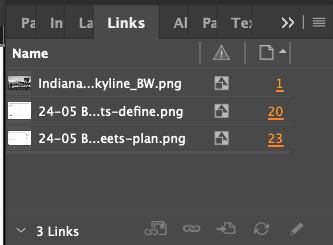
Links
When you place an image, you see a version of the file in the layout so that you can view and position it. However, the actual graphic file may be either linked or embedded.
When making a document for DORIS, you should always embed all links. Leaving a file linked will create issues if anyone other than you opens the file–InDesign will not be able to find the file, even if it is in a shared location like Box.
How to Embed Links
Select a file in the Links panel.

Either right-click on the file or open the hamburger menu in the Links panel and select "Embed Link."
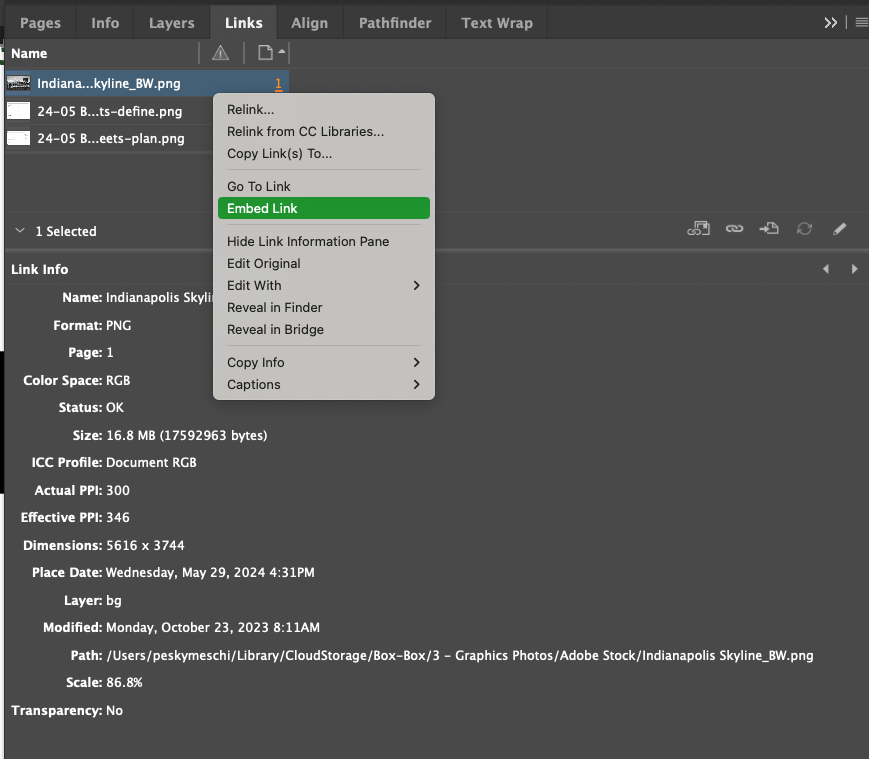
If there are multiple instances of the file, choose Embed All Instances Of [Filename] in the Links panel menu. To embed only one instance, select it and choose Embed Link.
Once a link has been embedded there will be a  icon next to it in the Links panel.