Click the "Create Content" button at the top right of the screen, then "Create a Post"
Create a Post
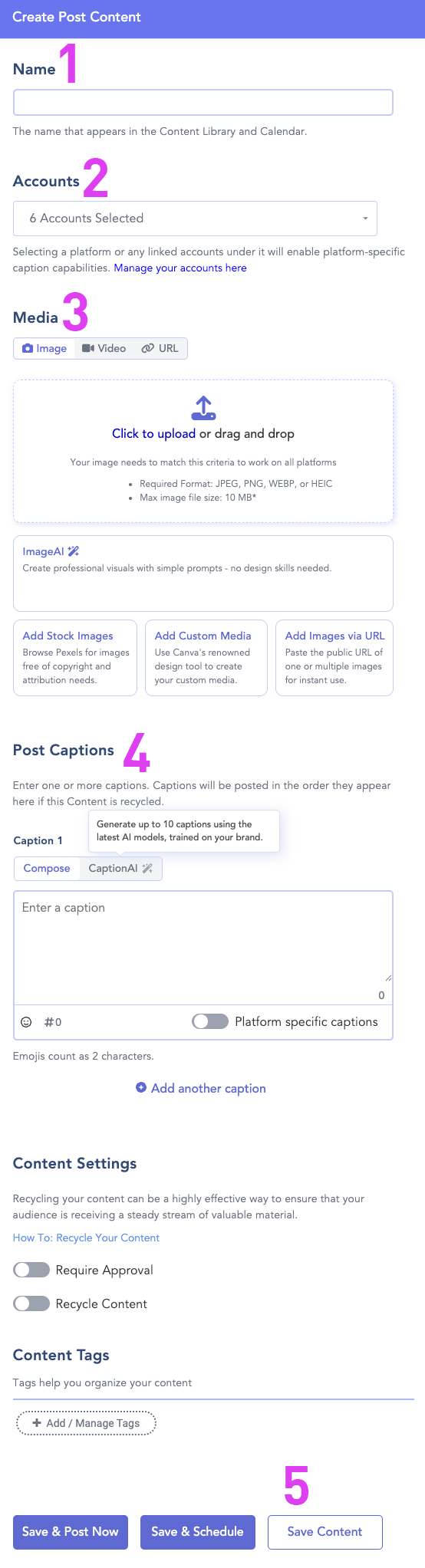
Create Post Content Visual Guide
Name is required. This is internal only.
Select only the account(s) to post this content to. It defaults to selecting all.
Media is where to upload an image if needed.
Images are stored in Google Drive: /Shared drives/DORIS/3 - Marketing DORIS/03 - Channels/2 - Social Media/Assets
Each month has its own folder.
Post Caption
Copy the caption from the week's approved posts document.
Paste the text into the text box.
Add hard returns between each paragraph to support readability.
Click the "Save Content" button.
Schedule Content
Use the left-hand menu to navigate to the Calendar
Drag each content block from the right column onto the date/day it should post.
Schedule rules:
LinkedIn posts should go out in the morning; otherwise, the system-assigned time is fine.
We usually post Tue, Wed, and Thu
Spread out the posts so no more than one post goes out each day on each channel (i.e., it's ok to have a DORIS LinkedIn post and a DORIS Instagram post on the same day, but not two DORIS LinkedIn posts on one day).

No comments to display
No comments to display