Skip to main content
Scheduling social media posts via Cloud Campaign
- Navigate to https://app.cloudcampaign.com/login
- Use the maria@dorisresearch.com (1Password) to login
- Click the "Create Content" button at the top right of the screen, then "Create a Post"
Create a Post
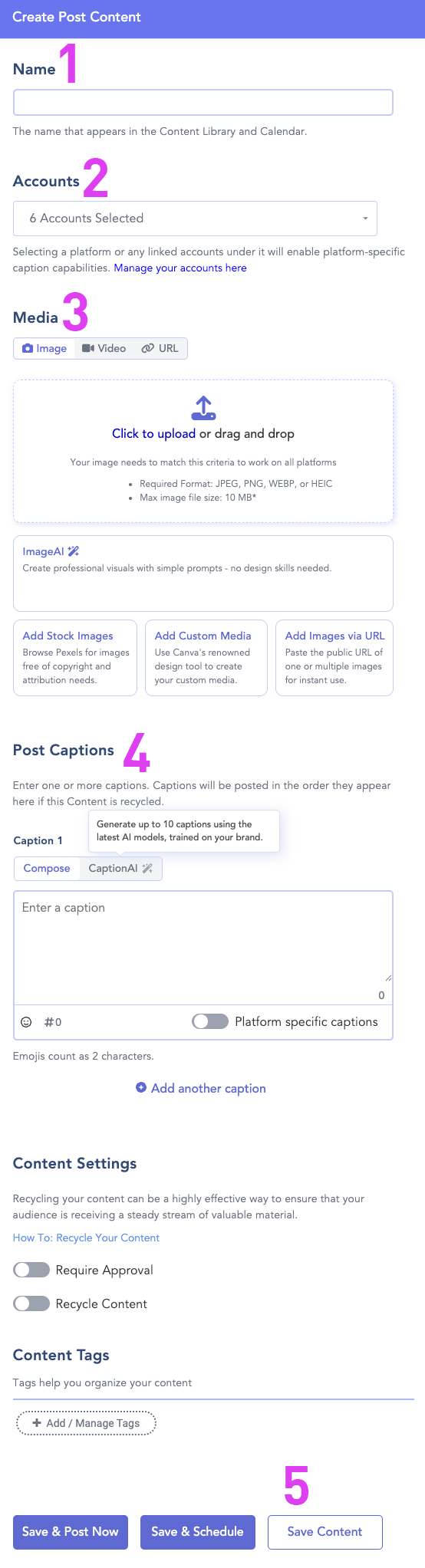
Create Post Content Visual Guide
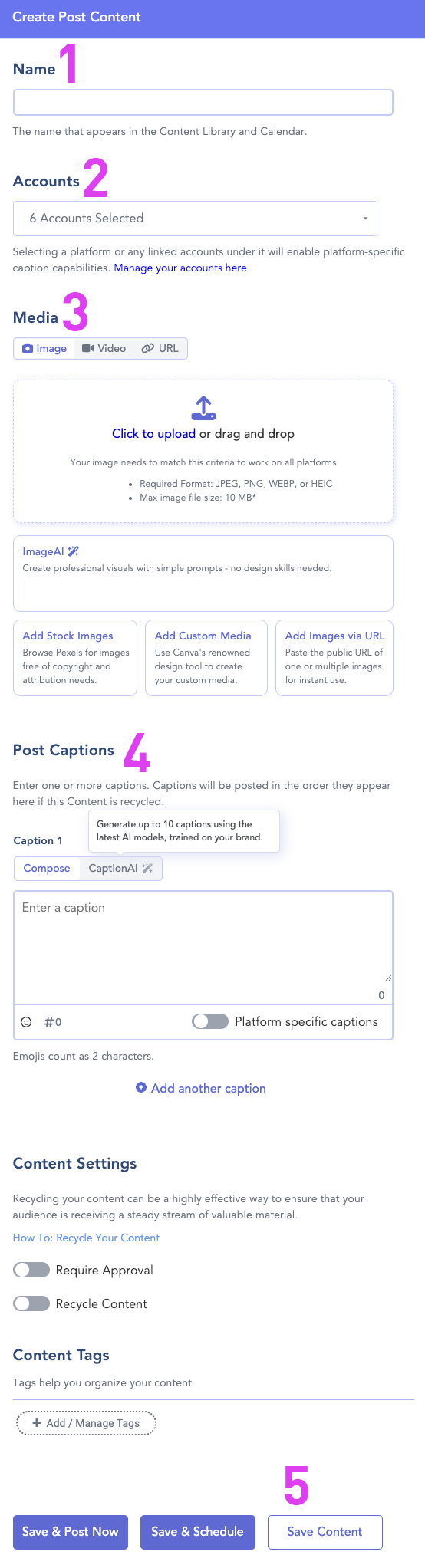
- Name is required. This is internal only.
- Select only the account(s) to post this content to. It defaults to selecting all.
- Media is where to upload an image if needed.
- Images are stored in Google Drive: /Shared drives/DORIS/3 - Marketing DORIS/03 - Channels/2 - Social Media/Assets
- Each month has its own folder.
- Post Caption
- Copy the caption from the week's approved posts document.
- Paste the text into the text box.
- Add hard returns between each paragraph to support readability.
- Click the "Save Content" button.
Schedule Content
- Use the left-hand menu to navigate to the Calendar
- Drag each content block from the right column onto the date/day it should post.
- Schedule rules:
- LinkedIn posts should go out in the morning; otherwise, the system-assigned time is fine.
- We usually post Tue, Wed, and Thu
- Spread out the posts so no more than one post goes out each day on each channel (i.e., it's ok to have a DORIS LinkedIn post and a DORIS Instagram post on the same day, but not two DORIS LinkedIn posts on one day).
Resources
Scribe guide